Bans & Warns
On this page11
A ban keeps a player off the server, for a set time or for good. A warn is a mark on the player's record that the player is told about. This page shows how staff give and lift both, and what the player reads.
Ban a player
- Open the panel with
/adminand go to Players. - Pick the player from the list.
- Under Moderation, press Ban.
- Fill in the two fields and press Ban.
| Field | Starts as | What it does |
|---|---|---|
| Reason | empty | The text the player reads. Left empty, it is saved as "No reason given". |
| Duration (minutes, 0 = permanent) | 0 | How long the ban lasts, in minutes. 0 is a permanent ban. More than ten years also counts as permanent. |
The player is removed from the server at once. The panel says <name> was banned.
The same Ban button is on the ticket page, for the people of a ticket you are handling. See Tickets.
Ban a player who is offline
- On Players, switch the list from Online to Offline.
- Type at least 2 characters of a name, a citizen ID or a license.
- Pick the player. The profile says: "This player is offline. Ban, warn, notes and lookup still work; live actions need them connected."
- Press Ban and fill it in as above.
What the banned player reads
| When | Text |
|---|---|
| The moment they are banned | The text of Config.BanMessage, with your reason |
| Every time they try to join | The same text. A temporary ban adds one line with the end of the ban |
With the default settings a temporary ban looks like this on the join screen:
You are banned from this server.
Reason: <your reason>
Banned until: 2026-10-18 20:15- A permanent ban has no "Banned until" line.
- The date and time come from the clock of your database.
- Change the first two lines with
Config.BanMessage. See Bans. - The words
Banned until: %sare in the locale file. See Localization.
A ban also blocks the PC
With Config.BanHardware = true (the default) a ban blocks the banned player's PC as well as the
account. A new account does not get them back in.
| Situation | Result |
|---|---|
| The banned player joins with a new account on the same PC | Refused, with the text of the ban. Staff see a /banevade line in the Logs |
| Somebody else plays on the same PC | Refused too, as long as the ban is active |
| The ban is revoked or its time runs out | The account and the PC can join again |
Config.BanHardware = false | Only the account is banned |
The Bans page
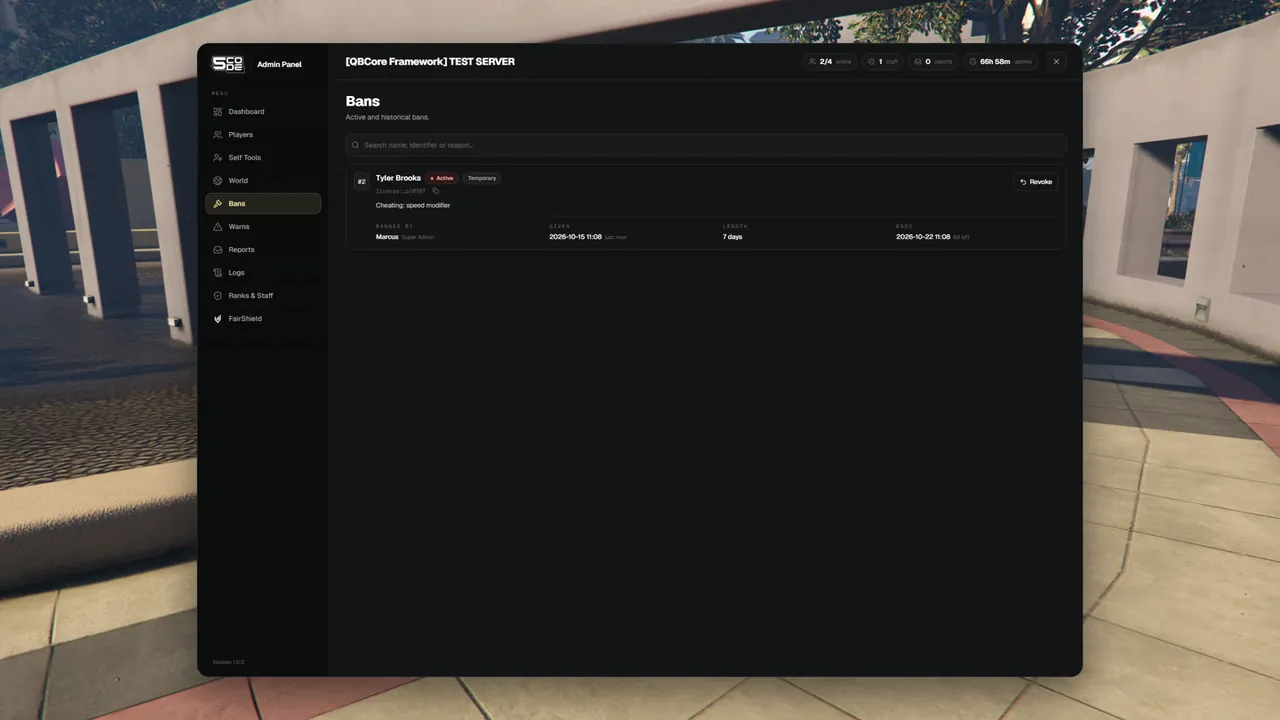
Open Bans in the menu. It lists every ban, the newest first: active ones, expired ones and revoked ones.
| On each ban | What it tells you |
|---|---|
#12 | The number of the ban |
| The name with Active, Expired or Revoked | The player and the state of the ban |
| Temporary or Permanent | The kind of ban |
| Citizen ID and identifier | Who was banned. The small button copies the full identifier |
| The reason | What the staff member wrote |
| Banned by | The staff member, with the rank they had |
| Given | The date and time, and how long ago |
| Length | "Permanent", or the time in words such as "7 days" |
| Ends | "Never", or the end date with the time left. A finished ban shows Ended, a revoked one Revoked by |
The search box ("Search name, identifier or reason…") also finds a citizen ID.
Revoke a ban
Press Revoke on an active ban. The panel says "Ban revoked" and the player can join again at once. The ban stays in the list as Revoked, with the name of the staff member who lifted it.
Warns
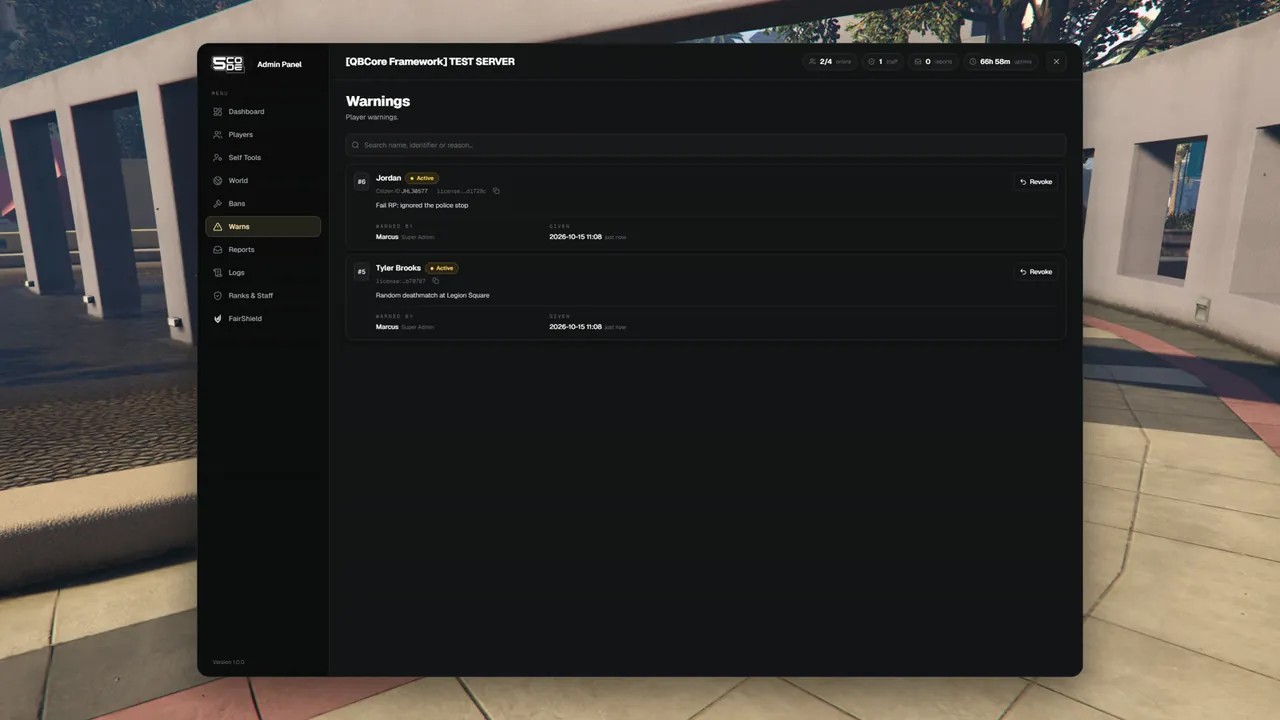
A warn does not remove the player. It is saved on their record and the player gets a notice.
- On Players, pick the player.
- Under Moderation, press Warn.
- Write the Reason and press Warn.
| Who | What they see |
|---|---|
| The player | The notice You have been warned: <reason> |
| The staff member | <name> was warned |
You can warn an offline player the same way as you ban one. An offline player gets no notice: the warn is only saved.
The Warns page
Open Warns in the menu (the page is titled Warnings). Each warn shows its number, the player, Active or Revoked, the reason, Warned by (name and rank) and Given.
Press Revoke to take a warn back. The panel says "Warning revoked". The warn stays in the list as Revoked.
On the player's profile
A player's profile on the Players page has a History part. It lists that player's bans and warns, the newest first: the reason, who gave it, when, and whether a ban is active, expired or revoked.
| Rank has | The History shows |
|---|---|
See bans (moderation.bans.view) | The player's newest 20 bans |
See warnings (moderation.warns.view) | The player's newest 20 warns |
| Neither | No History part |
Details: Players.
Rules
| Rule | What staff read |
|---|---|
| You cannot ban or warn yourself | "You cannot use this on yourself." |
| You cannot ban or warn a player with the same or a higher rank | "That player has the same or a higher rank than you." |
| The player left before you pressed the button | "That player is no longer online." |
| The player has no Rockstar license | "This player has no Rockstar license, so that is not possible." |
| A ban or warn can be revoked once | "That was already revoked." |
| Revoke has no rank rule | Everybody with the revoke permission can lift any ban or warn |
| A warn does nothing by itself | There is no automatic kick or ban after a number of warns |
Permissions
| Name in the rank editor | Key | Needed for |
|---|---|---|
| Ban | player.ban | The Ban button |
| Warn | player.warn | The Warn button |
| Offline players | player.offline | Banning or warning a player who is offline |
| See bans | moderation.bans.view | The Bans page, and the bans in a profile's History |
| Revoke bans | moderation.bans.revoke | The Revoke button on a ban |
| See warnings | moderation.warns.view | The Warns page, and the warns in a profile's History |
| Revoke warnings | moderation.warns.revoke | The Revoke button on a warn |
Ranks and their permissions are set on the Ranks & Staff page.
Settings
| Key | Where | What it changes |
|---|---|---|
Config.BanMessage | Bans | The text a banned player reads |
Config.BanHardware | Bans | Whether a ban also blocks the PC |
bans, warns | Discord Webhooks | Send bans and warns to a Discord channel |
Limits
- The duration is typed in minutes. There is no day or week picker.
- A ban cannot be edited. Revoke it and ban again.
- The Bans and Warns pages show the newest 100 entries that match. Use the search for older ones.
- A profile's History shows the newest 20 bans and the newest 20 warns of a player. For older ones, search the name on the Bans or Warns page.